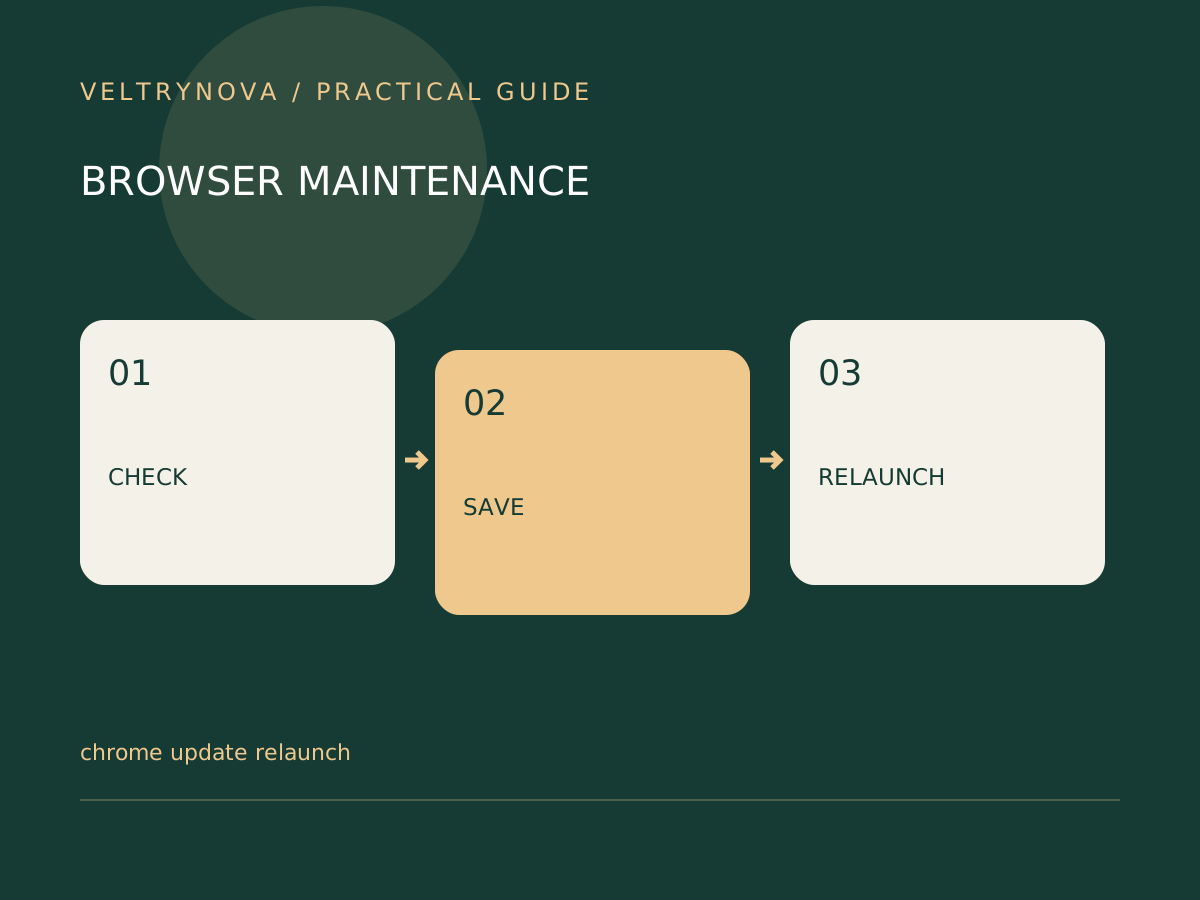
A browser that stays open for days can have an update waiting for a relaunch. Seeing that the download finished is not always the same as running the updated browser.
Google’s Chrome update instructions describe checking About Google Chrome and relaunching when prompted. Supported operating systems and managed-device policies can affect the update path.
Save work before the restart
Review tabs containing unsent messages, forms, temporary downloads, or browser-based editing. Confirm that documents are saved to the service rather than relying on an open tab.
Record important temporary URLs if necessary. Chrome may restore ordinary windows, but a restored page is not a guarantee that every unsent field or application state survives. Incognito windows are not restored in the same way.
Check the actual state
Open Chrome’s About page through the browser menu and let its update check complete. If a relaunch is offered, finish it when your work is saved. On Linux, the package manager may be the appropriate update mechanism.
After reopening, revisit the About page and read the reported status. For a work or school computer, use the organization’s supported update process if controls are managed.
If the update fails
Record the error and operating-system version before trying fixes. A device outside the supported platform requirements may need an operating-system change or replacement rather than repeated browser reinstalls.
Avoid third-party sites promising a special browser update download. Use Google’s distribution channels or the operating system’s trusted package source.
Finally, revisit your most important web application and check sign-in and essential features. This verifies that the working environment survived, not merely that a version string changed.
Pair this with a periodic permission review and bookmark backup for a small, repeatable browser-maintenance routine.