A backup job reporting success tells you that a process completed. It does not tell you whether you can recover the document you need on another day, device, or account.
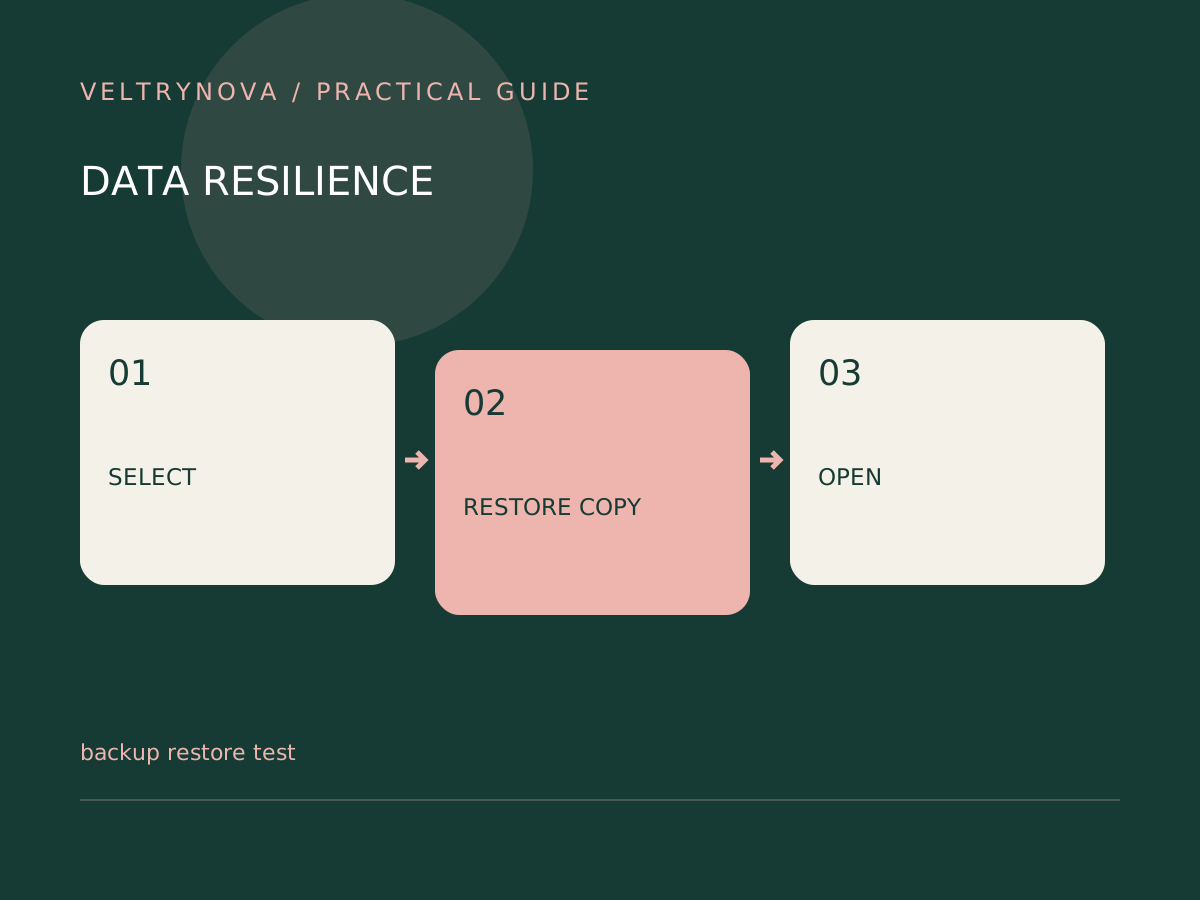
A useful restore drill answers three questions: can you find the right version, can you restore it without harming current work, and can you open it in the application you need?
Choose a representative sample
Select a small ordinary document, a larger media file, and one item that matters to your workflow. Avoid using confidential material for an initial experiment if a harmless test file can demonstrate the same steps.
Create a separate restore destination. Never point a first drill at the folder containing your current working files. If the backup tool offers overwrite, merge, or version options, read them before confirming.
Check the restored content
Open the files. Inspect a document’s pages, a photo’s appearance, or a video’s playback. A filename and nonzero size are weak checks by themselves.
Where practical, compare a known unchanged file with its restored copy using the application’s properties or an integrity-check tool. If encryption is involved, confirm that the required key is reachable independently of the missing device.
Record how long the process takes and any sign-in dependencies. “Recoverable eventually” may be inadequate for a file you need during an urgent trip or deadline.
Improve the recovery notes
Document the backup location, account, recovery sequence, and last tested date without recording passwords in the same note. Repeat the drill after changing providers or moving to a new computer.
The FTC’s computer-disposal guidance recommends preserving information before erasing old hardware. That step becomes more useful when you have actually opened a restored copy.
For the difference between automatic replication and recovery history, read cloud sync versus backup.