A bookmark collection is easy to overlook during a computer replacement because it feels like part of the browser rather than personal data. Exporting it before the move gives you a portable checkpoint.
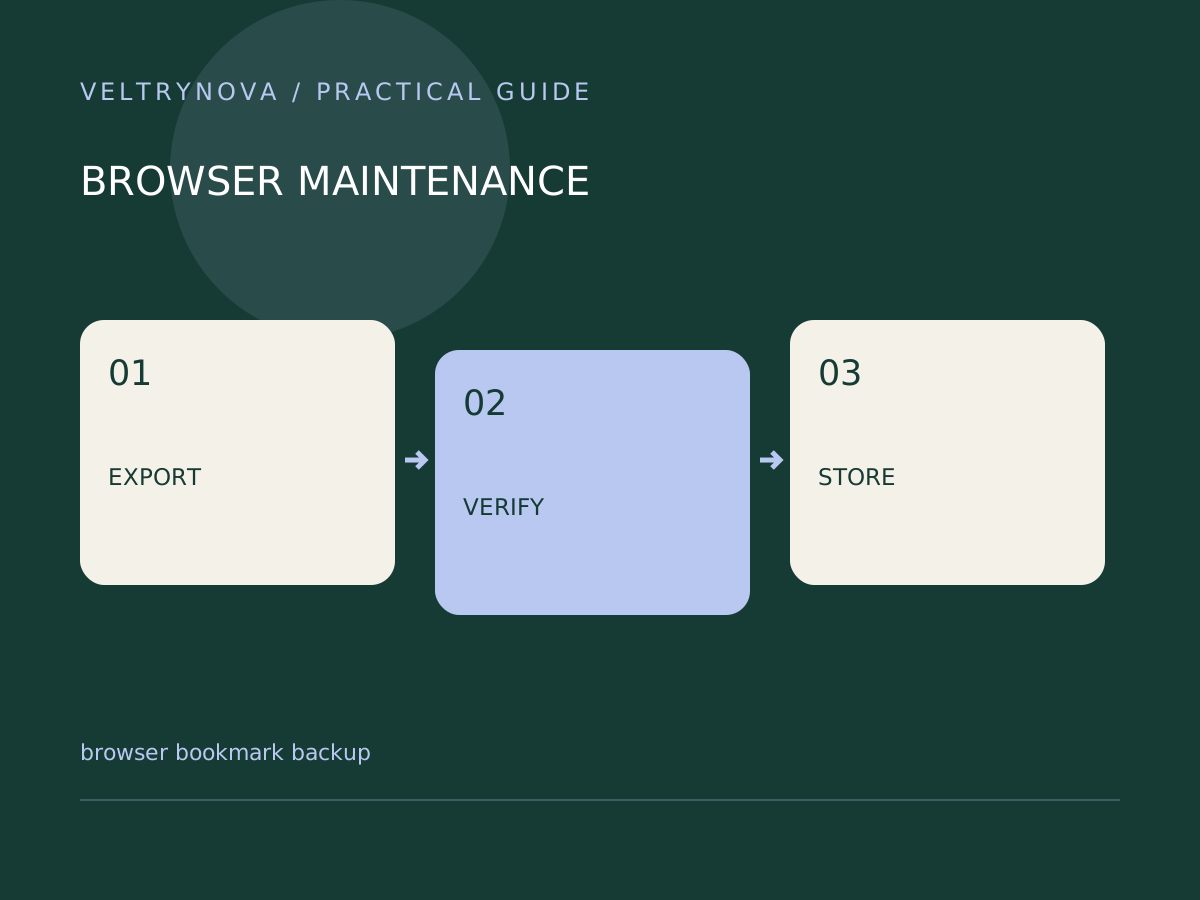
Chrome supports importing bookmarks from an HTML file and exporting them through Bookmark Manager. That file is a list of links; it does not recreate every setting, password, extension, or signed-in session.
Prepare a clean export
Check which browser profile contains the bookmarks you need. Export from each relevant profile separately and give the files clear names. Include the export date so that an older copy is not mistaken for the latest collection.
Consider whether bookmark titles or URLs reveal private projects, internal systems, or account identifiers. Store the export with the same care as other personal working documents.
Test the migration
Import a copy into the intended destination browser or a suitable test profile. Inspect nested folders, non-English titles, and a few important links. If the destination already has bookmarks, check how it groups imported entries.
Open several links manually. A bookmark that imports successfully can still point to a deleted page, expired project, or account-specific URL.
Keep the original export until you have used the new browser comfortably. Avoid cleaning up both computers at once: reversible migration is easier when the source remains available.
Separate bookmarks from the rest
Make a second checklist for passwords, multifactor recovery, browser extensions, downloads, and local application data. Sync may help with some of these, but its behavior depends on the product and settings.
For a shared computer, verify that you are not importing personal bookmarks into another person’s profile. Our Chrome profiles guide explains the organizational boundary.
A successful migration means the links you actually use open under the expected account, not just that the bookmark count looks plausible.