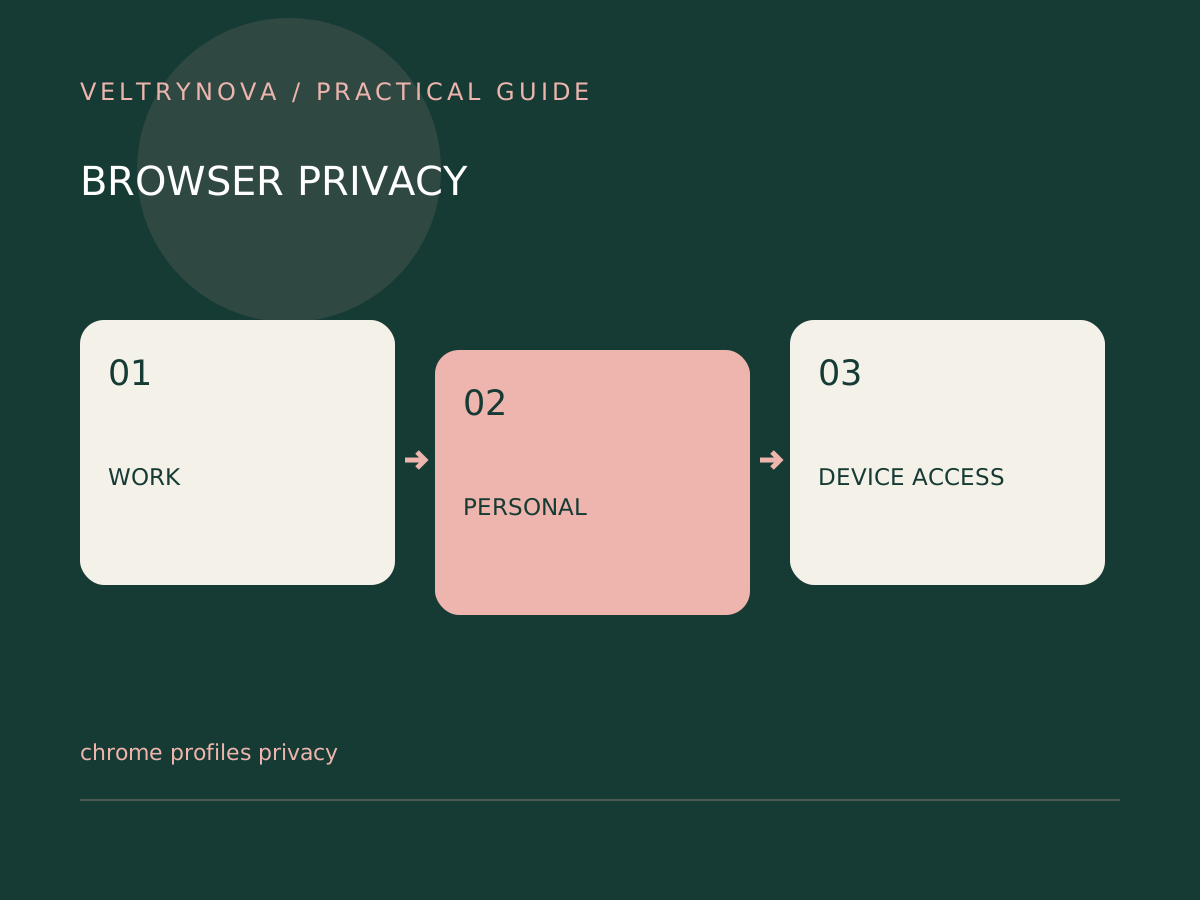
Chrome profiles are convenient containers for bookmarks, history, saved passwords, and settings. They can reduce accidental cross-account actions, such as sending a work document from a personal session.
Google cautions that someone who has access to your device can switch to other Chrome profiles and see their information. A browser profile is an organization feature, not a locked room.
Choose a profile boundary
A useful setup might have one personal profile and one employer-managed profile. Give each an unmistakable name and color. Keep account-specific bookmarks inside the correct profile so that a familiar link opens in the expected context.
Before connecting sync, check which Google account is being used. A profile name alone does not prove that the active website session belongs to the right account.
For truly separate users, consider separate operating-system accounts with appropriate access controls. Managed work devices may have rules that affect browser data and administration.
Migrate selectively
Export bookmarks if you need a portable list, and import them into the intended destination. Review the result for duplicates before deleting anything from the original profile.
Passwords, extensions, open sessions, and downloads do not all follow the same migration path. Inventory them separately. Do not assume that moving bookmarks moves every part of your working environment.
Make mistakes visible
Create a short pre-send habit: confirm the profile, the website’s account avatar, and the destination. This is especially helpful when you manage multiple email addresses or business properties.
If you are lending the computer temporarily, a private browsing session may reduce leftover session history, but device trust remains essential.
A clean profile arrangement should make the intended account obvious within a second or two. If two profiles look identical and contain the same shortcuts, the visual separation is not doing enough work.