A website asking to use a microphone does not automatically need access to your camera, location, or notifications. Treat each permission as a separate request connected to a feature you intentionally want.
Chrome allows site-specific permission controls. Google documents temporary and persistent choices, although available controls can depend on the feature, browser version, and whether the device is managed.
Start with the site’s identity
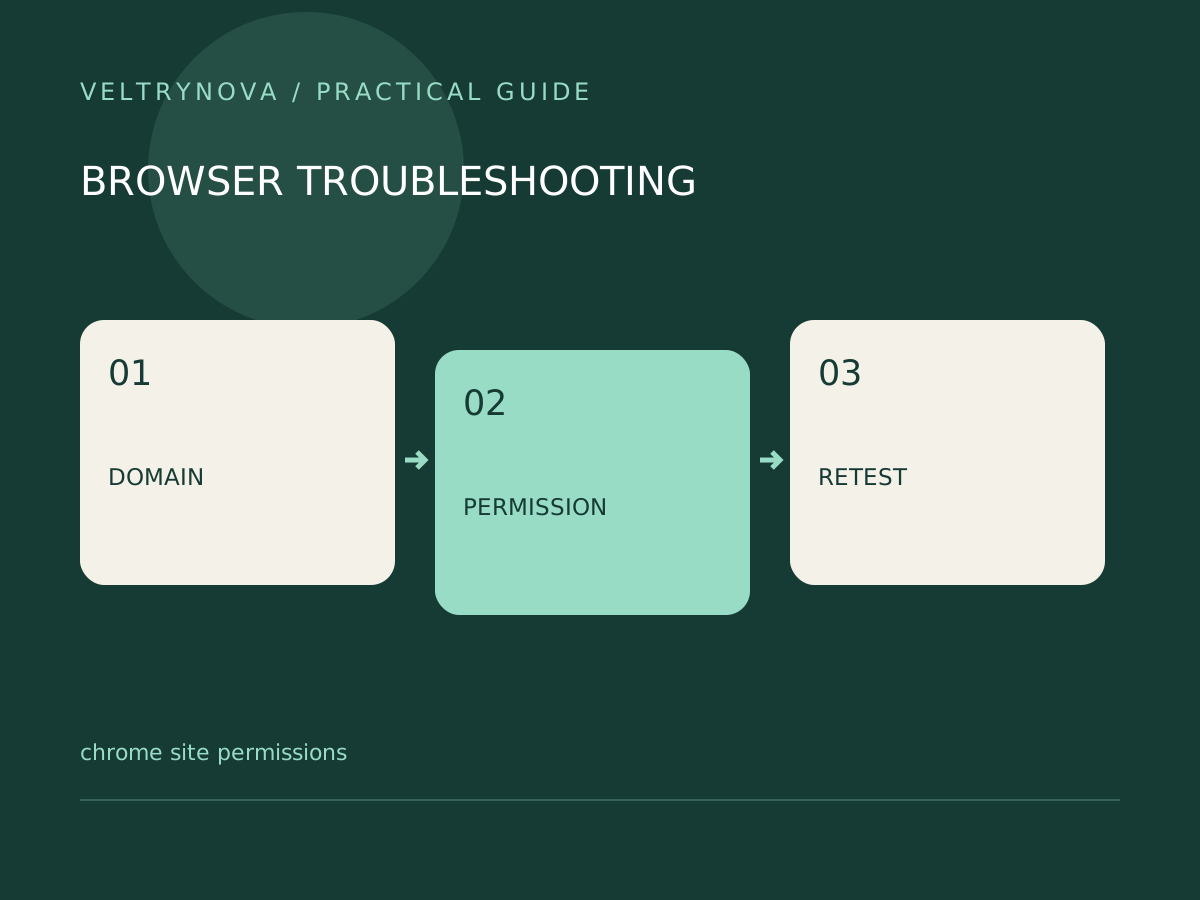
Open the intended website directly and inspect the address. A permission prompt belongs to a domain, so confirm that the domain matches the service you meant to use. An embedded tool may involve another origin that deserves its own inspection.
Write down the feature you need: a video call, a voice message, or location-based results. If you cannot explain the need, postpone granting access.
Change one setting
Use Chrome’s site settings for that website. Review permissions that are allowed, blocked, or unset, then change only the relevant one. Reload the page if the service requires it and test the feature.
A failed microphone test can also involve the operating system, selected input device, hardware mute, or application settings. Granting more browser permissions does not diagnose those layers.
On employer-managed devices, some controls may be enforced by an administrator. Ask about the policy rather than attempting to bypass it.
Review old grants
Old conferencing sites, one-time web tools, and former projects are sensible places to start a periodic audit. Remove access you no longer need, keeping a note if an essential service must be reconfigured.
For repeated unsolicited alerts, examine notification permissions specifically. Deleting cookies and blocking notifications are different actions.
If a website still misbehaves after its permissions are correct, follow our single-site data reset guide instead of resetting unrelated browser settings.