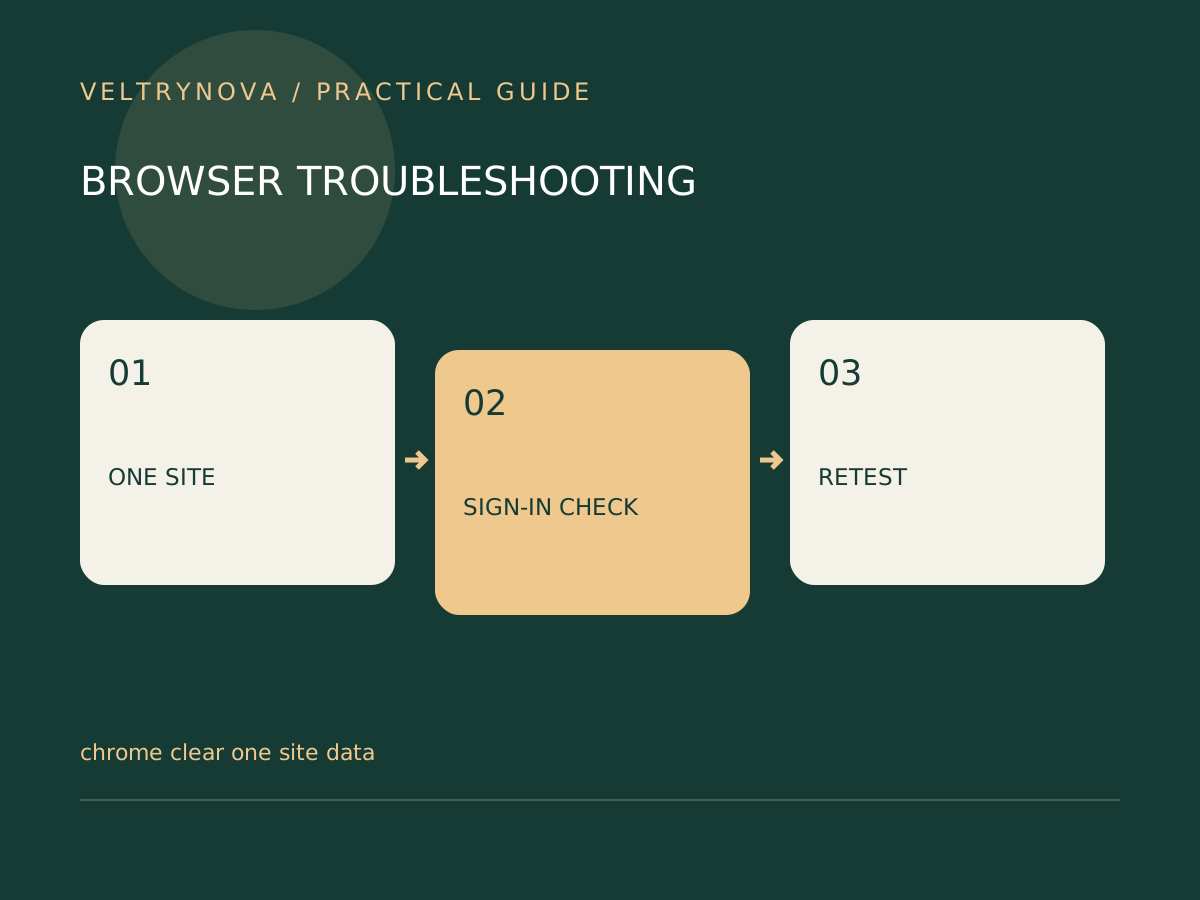
When one site loops through sign-in or displays an outdated state, clearing all browser data is an unnecessarily broad first move. Start by confirming that the problem is limited to that site and that you can sign back in afterward.
Google distinguishes cookies and site data from cached files, history, and saved passwords. Those categories have different consequences; they should not be treated as one universal cleanup button.
Identify the smallest useful reset
Record the affected URL and the visible error. Check whether the same account works in another supported browser or a separate session. This helps distinguish a local-session problem from a service outage or account restriction.
Before deleting site data, preserve any unsent form text or local work. Some applications store drafts in the browser. Confirm that you know your login method and can complete multifactor verification.
In Chrome’s settings, find stored site data, search for the relevant domain, and remove that site’s data. Menu wording can change, so use the current Google instructions linked below.
Retest once
Close the affected tabs, reopen the normal address, and sign in through the intended flow. If the site works, stop. Clearing more categories does not improve a problem already resolved.
If it still fails, note whether the error changed. Check browser updates, site permissions, and the service’s status or support information. Avoid repeatedly wiping data while the actual fault remains unexplained.
Know what this does not prove
A successful reset suggests local state contributed to the problem. It does not identify the exact cookie responsible or prove that your account was compromised.
A useful support note says which site data was removed and what happened afterward. That is more helpful than “I cleared everything.”
For permission-related failures, use our site permission review before changing browser-wide defaults.