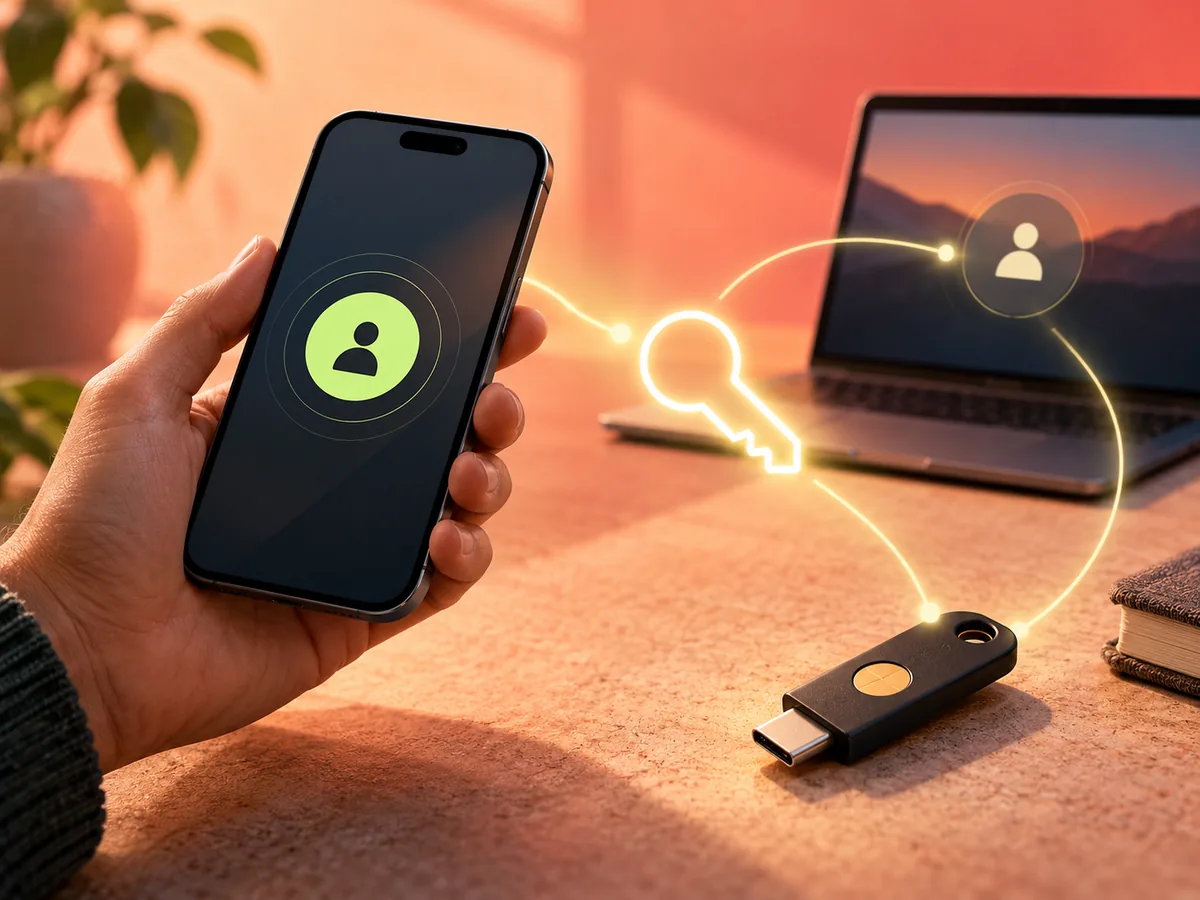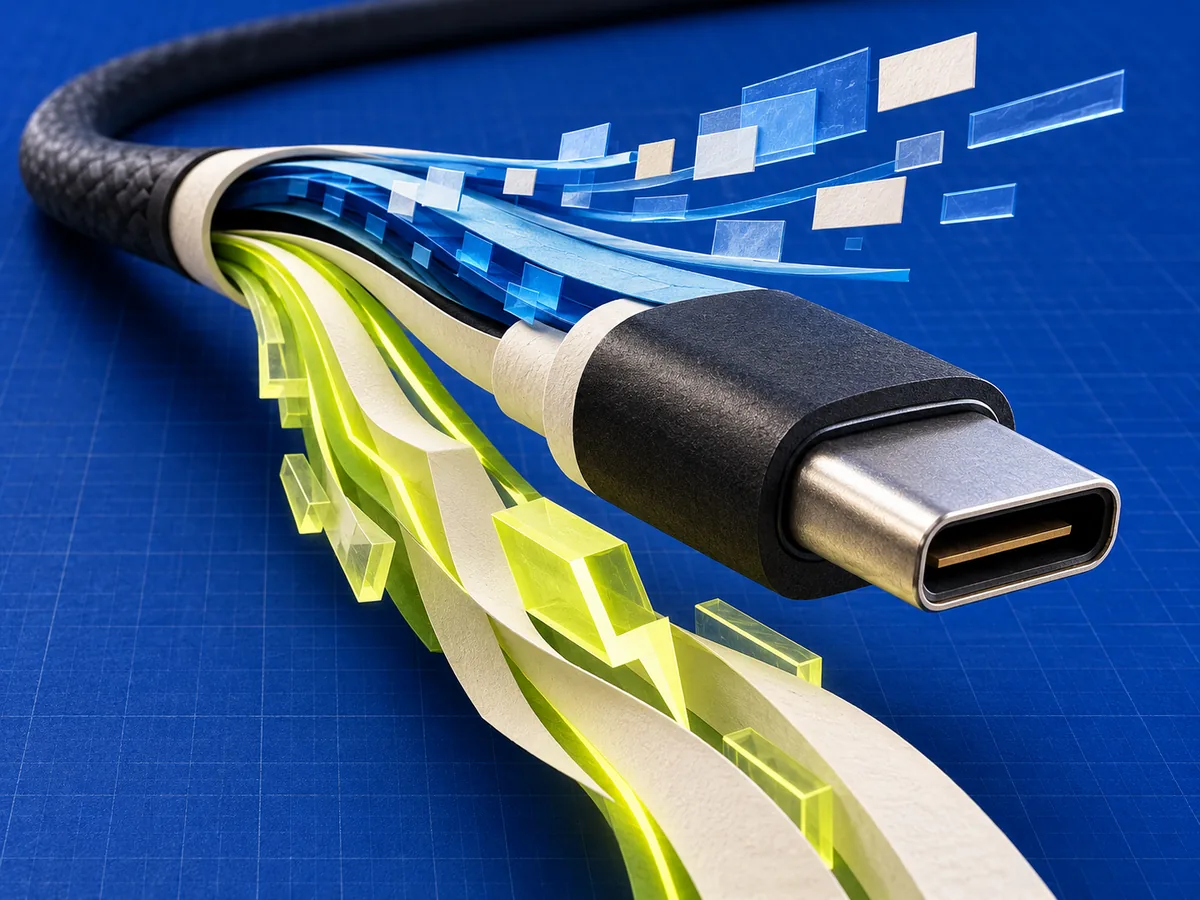
USB-C describes the shape of a connector. It does not, by itself, tell you how quickly a cable moves data, how much power it can carry, or whether it supports a display. That is why two cables with matching plugs can behave very differently.
The useful shortcut is to read a USB-C cable as a set of separate capabilities: connector, data rate, power rating, and optional features. A good label makes at least the first three clear.
If you remember one rule, use this one: match the cable to the job, then verify that the charger and both devices support the same job. No single logo on the connector can upgrade the rest of the chain.
Start with the two numbers that matter
For a USB-C to USB-C cable, look for a data-rate marking such as 5Gbps, 10Gbps, 20Gbps, 40Gbps, or 80Gbps, plus a power marking of 60W or 240W. The exact combinations available depend on the cable and the USB specification it implements.
USB Implementers Forum (USB-IF), the organization behind the USB specifications and certification program, says compliant USB-C to USB-C cables in its program must carry an appropriate 60W or 240W power marking. With the exception of basic High-Speed USB cables, the program also requires the supported data rate to be marked.
Those markings answer different questions:
- Gbps is the cable’s maximum advertised data rate under the relevant USB mode.
- W is the cable’s supported power capacity under USB Power Delivery.
- USB-C is the physical connector type, not a performance tier.
A 240W cable is not automatically a high-speed data cable. A fast data cable is not automatically the right cable for a high-power laptop charger. Check both values.
The absence of a data-rate number does not automatically mean a cable is unsafe or defective. USB-IF’s compliance rules allow a basic High-Speed USB cable to carry the power marking without a mandatory data-rate marking. For large file transfers, docks, or displays, however, an unspecified data capability is a reason to check the product documentation rather than guess.
What 60W and 240W actually tell you
The printed wattage is the cable’s supported power tier under the USB Type-C and USB Power Delivery ecosystem; it is not the amount of power constantly flowing through the cable.
A 60W-marked cable covers many phones, tablets, and lower-power laptops. A 240W-marked cable is designed for USB Power Delivery Extended Power Range and is the appropriate tier when a compatible device and charger need more than 60W. The source, device, and cable negotiate the actual delivery level.
Do not infer charge speed from wattage alone. A phone may accept far less than the charger’s label, and some manufacturers use proprietary fast-charging modes in addition to or instead of standard USB Power Delivery modes. Check the device’s supported input and the charger’s output profile.
Why the charger and device still matter
A cable never upgrades the ports at either end. Your final result is limited by the least capable part of the chain: the power source, cable, device, and any hub or adapter in between.
For charging, a 240W-rated cable cannot make a 65W charger deliver 240W. The charger and device must negotiate a power level they both support. For file transfers, a 40Gbps cable connected to a slower USB port operates at the speed the full connection supports.
Displays add another variable. Video output depends on the device, port, cable, display, and the display mode being used. A USB-C plug alone is not proof that a laptop port can drive a monitor.
The same bottleneck rule applies to docks. A dock may share bandwidth among storage, networking, and displays, and its upstream cable may be captive or replaceable. Replacing a cable helps only if the original cable was the limiting component and the ports support the desired mode.
Passive, active, and charging-only cables
Cable construction can affect length, capability, and price. Passive cables rely on the signal provided by the connected devices. Active cables include electronics that help maintain high-speed signaling over a longer distance. The presence of electronics does not make an active cable universally better; it must still support the exact data, display, and power modes you need.
Some inexpensive cables are intended mainly for charging and provide only basic USB 2.0 data—or no useful data specification in the listing. That can be acceptable for a bedside charger and frustrating for an external SSD. Treat “charging cable” as a use description, not proof of high-speed data support.
Cable length matters because maintaining very high data rates becomes more demanding as the run gets longer. If a listing promises an unusual combination of maximum speed, very high power, and long length, look for a precise model number and certification claim.
What “certified” adds
USB-IF maintains a certification program and a public product search. Its product list is limited to products certified to use USB-IF branding, and a product must pass the relevant compliance program before it is authorized to carry a certified logo.
That does not mean every functional cable on the market will appear in the database. Certification is a specific program, not a universal inventory of all cables. It does mean a certified logo should correspond to defined testing and an identifiable product rather than a vague compatibility claim.
When a purchase matters—an expensive laptop, a high-resolution display setup, or sustained high-power charging—use the manufacturer’s exact model number and check the USB-IF product search when certification is claimed.
USB-IF’s product search is not a list of every usable cable. It is a search for products certified to bear USB-IF branding. The database also notes that products with older certification dates may not have been tested against the current iteration of the compliance program. Match the manufacturer and model or part number rather than relying on a similar product name.
Be cautious with logo-like artwork that replaces a defined performance number with phrases such as “ultra fast.” USB-IF’s certified performance logos are tied to specific testing and usage rules. A retailer badge or a seller’s graphic may not be the certification mark it resembles.
A five-question buying check
Before buying or reusing a cable, answer these questions:
- What connectors are on both ends? USB-C to USB-C and USB-A to USB-C are not interchangeable for every use.
- How much power do you need? Match the cable rating to the charger and device requirement, with room for the intended use.
- What data rate do you need? Charging a phone and editing video from an external SSD are very different jobs.
- Do you need display support? Confirm the complete device-to-display path, not just the cable description.
- Can you identify the product? Prefer a clear model number, published specifications, and verifiable certification claims.
Add a sixth question for travel or shared workspaces: Can the cable be identified later? If you own several identical black cables, label the high-power and high-speed ones. Otherwise, the specifications disappear as soon as the packaging is discarded.
Match common jobs to specifications
For a phone charger, prioritize the device’s charging standard, the charger’s compatible output, and a cable with adequate power capacity. High data speed may not matter.
For an external SSD, confirm the drive enclosure and computer port speed, then choose a cable that explicitly supports at least that data rate. A bundled short cable is often the safest baseline when troubleshooting.
For a USB-C monitor or dock, confirm video support for the device and dock, the required resolution and refresh rate, power delivery in both directions, and whether the cable is specified for that complete use. “USB-C compatible” is too broad.
For a high-power laptop, check the computer’s maximum USB Power Delivery input, the charger’s advertised output at the required voltage, and the cable’s 60W or 240W marking. The lowest supported level controls the result.
Troubleshoot a cable without guessing
If a connection is slow or unstable, change one component at a time:
- Use the device’s original charger or cable as a known baseline.
- Connect directly, removing hubs and adapters.
- Try another port whose specifications you can verify.
- Check the operating system for the negotiated link or charging state when it exposes that information.
- Replace the cable with a clearly labeled, appropriate model.
Intermittent charging, unusual heat, visible damage, loose connectors, or a burning smell are reasons to stop using the cable rather than continue testing it.
The simple rule
Do not buy a cable because it “looks like USB-C.” Buy it because its power rating and data capability match the job, and because the product information is specific enough to verify.
The connector made USB easier to plug in. The label is what tells you what the cable can actually do.